
↵Open
Wunder Mobility changelog
Release 45-2026 - Wunder AI side panel, rental end checks and station conflicts
Highlights
Ask Wunder AI next to any screen: Wunder AI opens as a side panel on every back-office screen, so you can ask about your data or the platform without leaving the page you are working on.
Mobile App
Requires the latest app version. Contact your Customer Success Manager for details.
On-demand
Nearby Vehicles sheet can be switched off: Operators can now hide the Nearby Vehicles sheet on the map home screen. This suits fleets where parking rules group many vehicles in one spot and riders pick a vehicle by scanning its QR code on site. Finding a vehicle on the map or by QR scan works as before. The sheet stays on unless you ask your Customer Success Manager to switch it off. The change reaches riders without a further app update if you are running on the latest app version.
New Dashboard
Booking
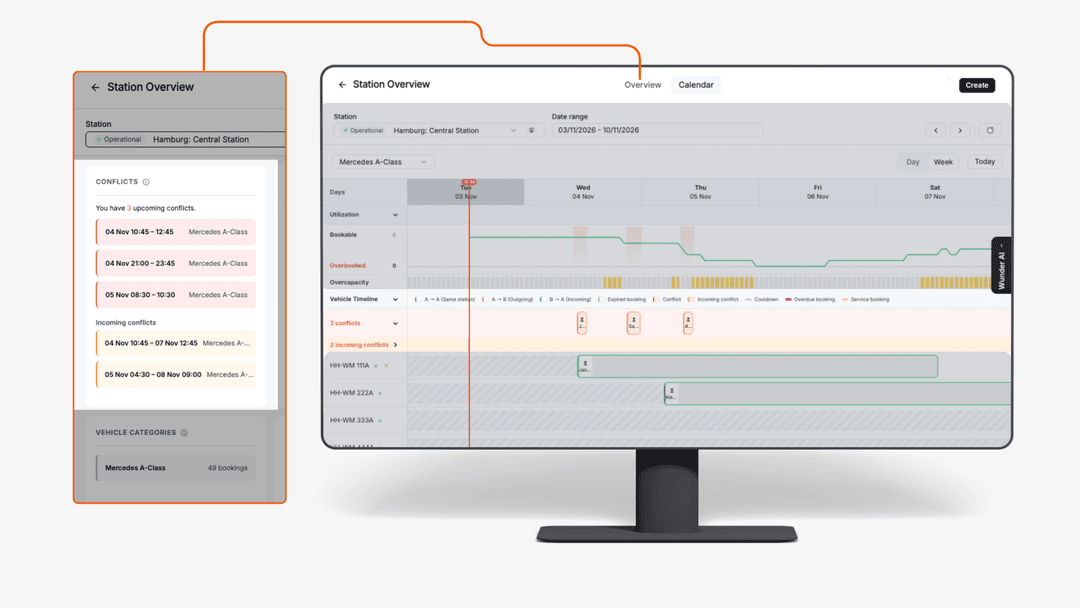
Incoming conflicts shown apart from a station's own conflicts: In the booking calendar and the station overview conflict list, the conflicts an operator must fix at a station now come first. Incoming A-to-B bookings whose conflict sits at their start station are shown separately below as a warning, and no longer count toward the station's conflict number or daily trend, so operators stop investigating conflicts they cannot fix there.
General
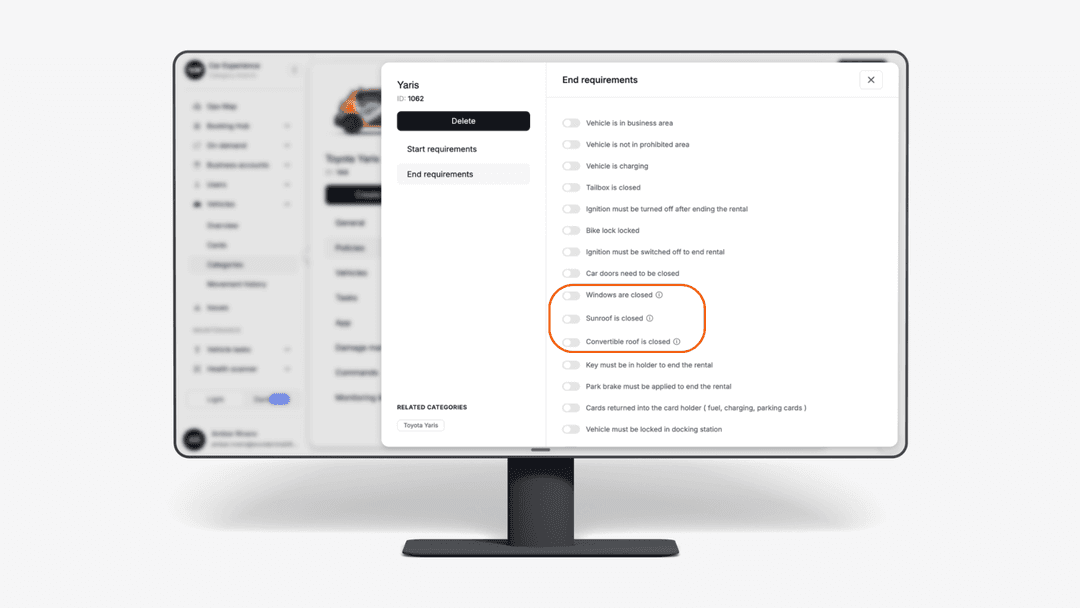
Window, sunroof and convertible roof checks per vehicle category: A vehicle category's rental requirements now offer "Windows are closed", "Sunroof is closed" and "Convertible roof is closed", each switched on separately. A check applies only when the car reports that state (currently INVERS-connected cars) and is skipped otherwise. Ending a rental from the Dashboard is not blocked by these checks.
Stationed vehicles can show their own position: Operators can now have vehicles docked or parked at a physical station shown at their own GPS position and address in the rider app and the User API, instead of the station's position. The setting is off by default and sits under
Settings > App > Stations.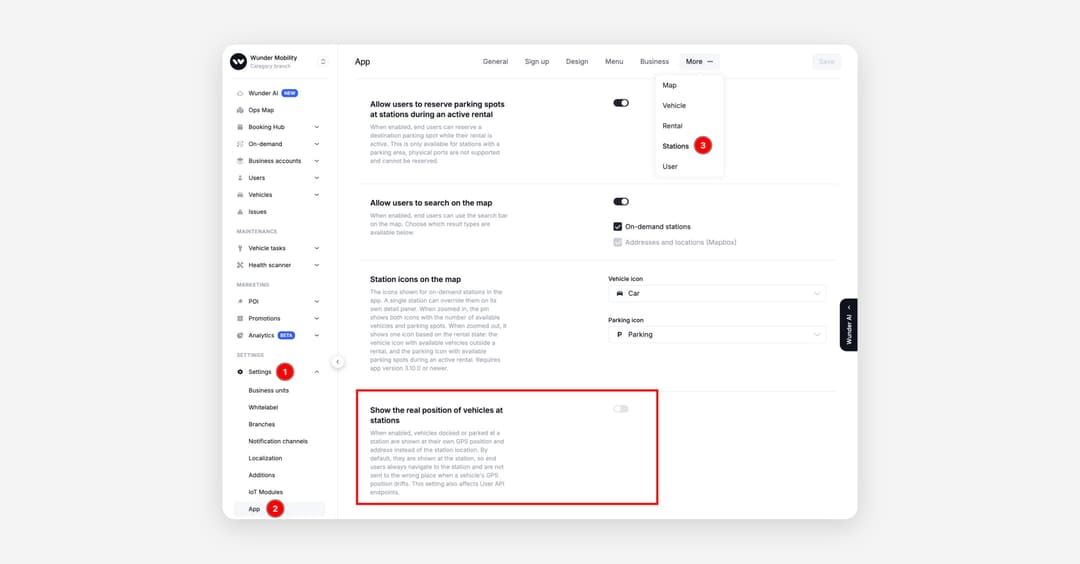
Platform
Rental
Clear message when a manual bike’s lock is still open at rental end
On manual bikes, where the end user closes the lock by hand, ending or parking a rental while the lock still reports open now shows “Bike lock must be locked for this operation to succeed” (R297) instead of a general vehicle error, so end users know to push the lock fully closed and try again. The rental still cannot end until the lock is closed. The same message appears when your team ends or parks the rental from the dashboard. No app update is needed.Disconnected bikes leave the app sooner: An Okai, Omni or Yadea vehicle that loses its connection is now marked offline and hidden from end users within about a minute, rather than staying bookable for several minutes, so fewer ride starts fail on a vehicle that cannot be reached. A short drop that reconnects within 45 seconds does not hide the vehicle. Expect somewhat more offline and online events in your event log.
Pricing
Promo codes with a package discount now redeem: Promo codes with a "discount on packages" benefit now redeem in the rider app instead of failing. The discount applies to every package purchase until the promotion expires, with one package discount per purchase.
Payment
Paying open invoices no longer charges a rider twice: When a rider pays all open invoices in the app and one of them fails, every successful charge is now recorded and its invoice marked as paid. A rider who tries again is no longer charged a second time for an invoice that was already paid.
API
General
Task completion time and completer: The task API now returns when a task was completed and by whom. Both values are set when the task moves to Completed and stay unchanged on later edits, so task durations and per-worker counts are accurate. Tasks completed before this release are filled in from their change history where it records the completion.
Vehicle log entries include speed, battery voltage and charging state: Each entry returned by
GET /back/vehicles/{id}/log-entriesnow carries speed, battery voltage and charging state whenever the vehicle reported them, so integrations can read them without the vehicle details call.
Data / BI
Wunder AI
Ask Wunder AI next to any screen: Wunder AI now opens as a side panel on every back-office screen, from the Wunder AI label on the right edge, so you can ask without leaving the page you are working on. Your conversation carries over between sections and the Wunder AI page. Questions about how the platform works, the API and your data share now have their own daily limit, so only questions about your own data count toward your data limit.
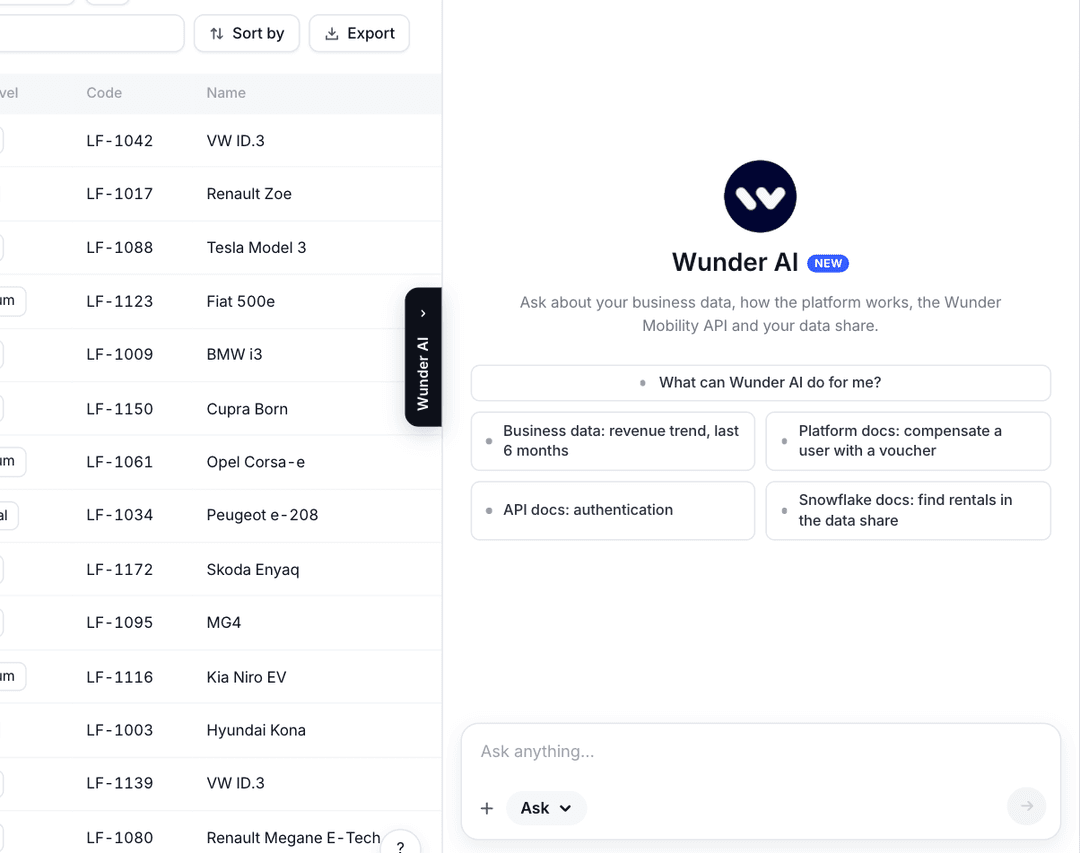
Platform answers without Wunder AI: If Wunder AI is not enabled for your account, a documentation-only version of the side panel can answer questions about the platform, the API and your data share. It is switched on per account; your Customer Success Manager can set it up.
See what each service worker completed: The Wunder AI use case library in the help centre has a new entry for operations leads: how many different cars each person on your field team worked on yesterday, and how their last 7 days split by task category. It gives you the wording to type and tells you where the answer stops being reliable.
General
See where new users drop out of sign-up: The Onboarding dashboard under Analytics shows where new users stop in sign-up, how long each step takes, and how many go on to rent within 30 days, by channel and by partner app.
See how your identity checks perform: If you check licences and ID documents through an identity provider, take a look at the KYC checks dashboard under Analytics that shows how your provider answers: approvals, declines, retries and checks never finished, the reasons given, and the checks waiting for your team's review.
Issues, Tasks and Bookings analytics are current: The Issues, Task performance and Bookings dashboards under Analytics refresh with your current data, and task categories show your own category names.